Practice: today’s plan, progression, or guided session
Choose Today’s plan, My progression, or Guided session to rehearse chords, follow a short checklist, and build useful practice momentum.
Access: Guided session is free. Pro adds Today’s plan, My progression rehearsal controls, and practice history. Previously available local work can be used offline.
Open guided practice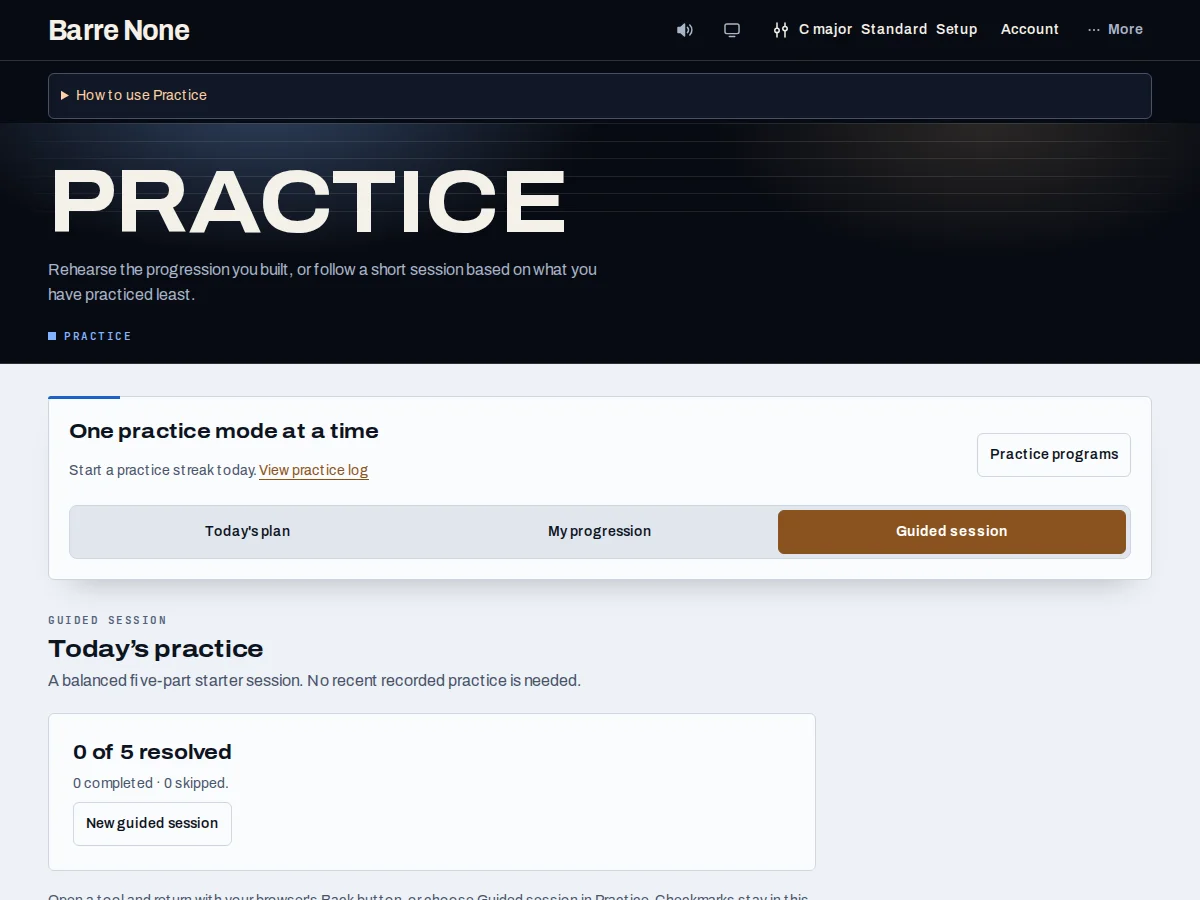
Get started
- Open Practice and choose Today’s plan, My progression, or Guided session from the Practice mode control.
- For Today’s plan, read the suggested activities and press Start on the area you want to work on.
- For My progression, use Build a progression on Key or play the progression already in the URL.
- Set tempo, Metronome, Loop, and Count-in in the rehearsal controls before pressing Play all.
- For Guided session, open each suggested tool, return with the browser Back button, then choose Mark complete or Skip.
- Open Practice log when you want to review eligible completed practice rather than the current checklist.
How it works
Three ways to practice
Today’s plan is an adaptive list based on what you have practiced least. My progression is a playback-focused view of the progression from Key explorer; chord choices and ordering stay on the Key page. Guided session offers a fixed five-task checklist and sends you to the relevant tools, then tracks completed or skipped tasks in the current tab.
- The mode chooser shows Today’s plan, My progression, and Guided session.
- A free guided session is complete without an account.
Rehearsal controls
Tempo, Metronome, Loop, and Count-in apply to Play all in My progression. The click and chords share one Stop playback control. Chord-change practice uses a pair of chords and asks you to complete the drill; playback is rehearsal support, not a claim that a score guarantees performance.
- Use Key explorer to edit the progression, then return to Practice to rehearse it.
- Guided-session checkmarks reset on reload; eligible completed practice can appear in Practice log.
Example: start a free guided practice session
- Choose Guided session in Practice mode, or Start a free guided session from the Pro prompt.
- Open the first suggested tool and complete its exercise at a comfortable pace.
- Return to Practice and choose Mark complete, or Skip if you are moving on.
- Work through the remaining tasks and review the session result.
What to expect: The checklist helps you finish a short practice routine without an account. Opening a tool alone does not mark its task complete.
Troubleshooting
Why is Today’s plan different from yesterday’s?
The plan responds to your recent practice balance and current goals. Review the suggested task and your goals before beginning; you can also choose Guided session for a fixed checklist.
Why can’t I edit chords in My progression?
Practice is the rehearsal view. Use Build a progression on Key or Edit progression on Key, then return to play the updated strip.
Why did my Guided session checkmarks disappear?
The checklist is intentionally session-local and resets on reload. Eligible completed activities can still be written to Practice log when access and completion rules allow.