Find guitar chords by key, voicings, and CAGED shapes
Build a key-specific chord palette, compare guitar voicings, and turn ideas into a playable progression.
Access: Free, with Pro features clearly marked
Open Key explorer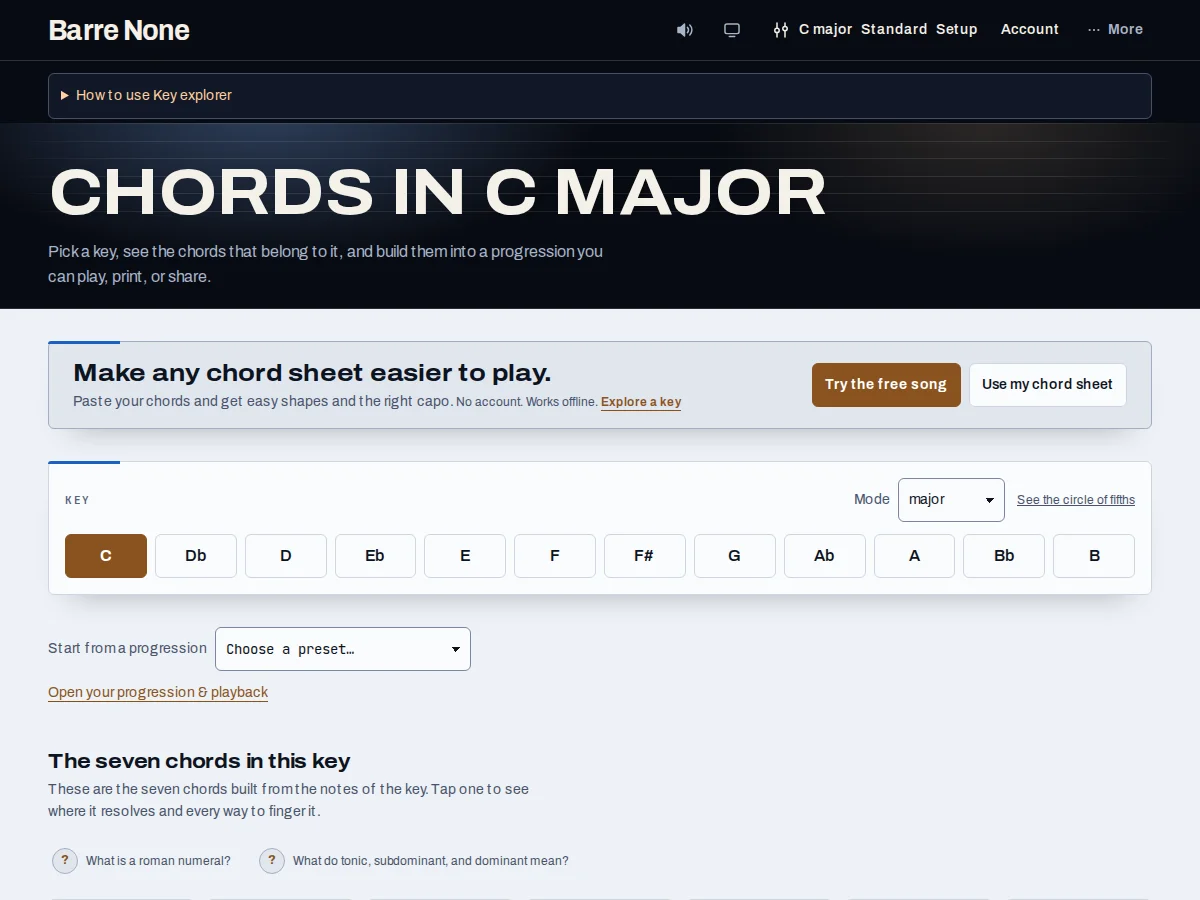
Get started
- Choose a tonic and mode in the Key picker. The page updates the seven scale-degree cards.
- Select a card body to open its voicings and next-chord suggestions; the card body does not add it.
- Use a card’s Add button to append that chord to the progression strip, or use Start from a progression.
- In the voicings panel, choose Root or an available Bass note to inspect an inversion.
- Play an individual shape, a suggestion pair, or the whole strip; use Setup for tuning, capo, and shape difficulty.
How it works
Read the chord grid
Each card combines a chord symbol, roman numeral (or Nashville number), harmonic function, and the best available fingering for the current setup. The card body selects; ▶ only sounds; Add only appends. A capo line separates the shape you finger from the chord that sounds.
- Voicings are coverage-ordered across the neck, not a strict best-to-worst ranking.
- A selected Bass note asks for an inversion with that note in the bass; resolution suggestions remain attached to the base chord.
Find useful shapes
Change Chord form in Setup to triads or sevenths, and use Shape difficulty to filter Easy or Open position shapes. If a filter has no eligible shape, the page explains that it is showing the unfiltered results. On standard-interval tuning, some major and minor triad diagrams may carry CAGED badges; seventh chords are not given a fabricated badge.
- Borrowed cards show their chromatic roman numeral and remain addable.
- Inversions change the sounding bass, not the resolution suggestions.
Write and recover
The progression strip supports reordering, undo, playback, copy, print, and saved progressions. Loading a preset is one undoable command and keeps your current key. Shared links carry key, progression, tuning, capo, and tempo.
Make a C–Am–F–G verse
- In Setup, choose Standard tuning, no capo, and triads; set the key to C major.
- Press Add on C, Am, F, and G in that order.
- Set the practice tempo if desired, then play the progression strip.
What to expect: The strip contains four chords and plays one chord per 4/4 bar. Selecting G afterward can show its E-shape or other returned voicings, but selecting it does not alter the strip.
Troubleshooting
Why did selecting a card not add it?
Selection opens details only. Use the separate Add button, whose accessible name says Add <chord> to progression.
Why is the shape not the chord I expected with a capo?
Fret numbers and diagrams describe the shape relative to the capo. The line beneath the diagram says “play” the shape and “sounds” the resulting chord.
Why is there no CAGED label?
CAGED badges are identification of returned major/minor triad shapes on standard string intervals. They are not synthesized for every chord or tuning.