Set guitar tuning, capo, and diagram preferences
Use the Setup sheet to make every diagram match your instrument, capo, playing hand, and reading preferences.
Access: Free
Open the app and Setup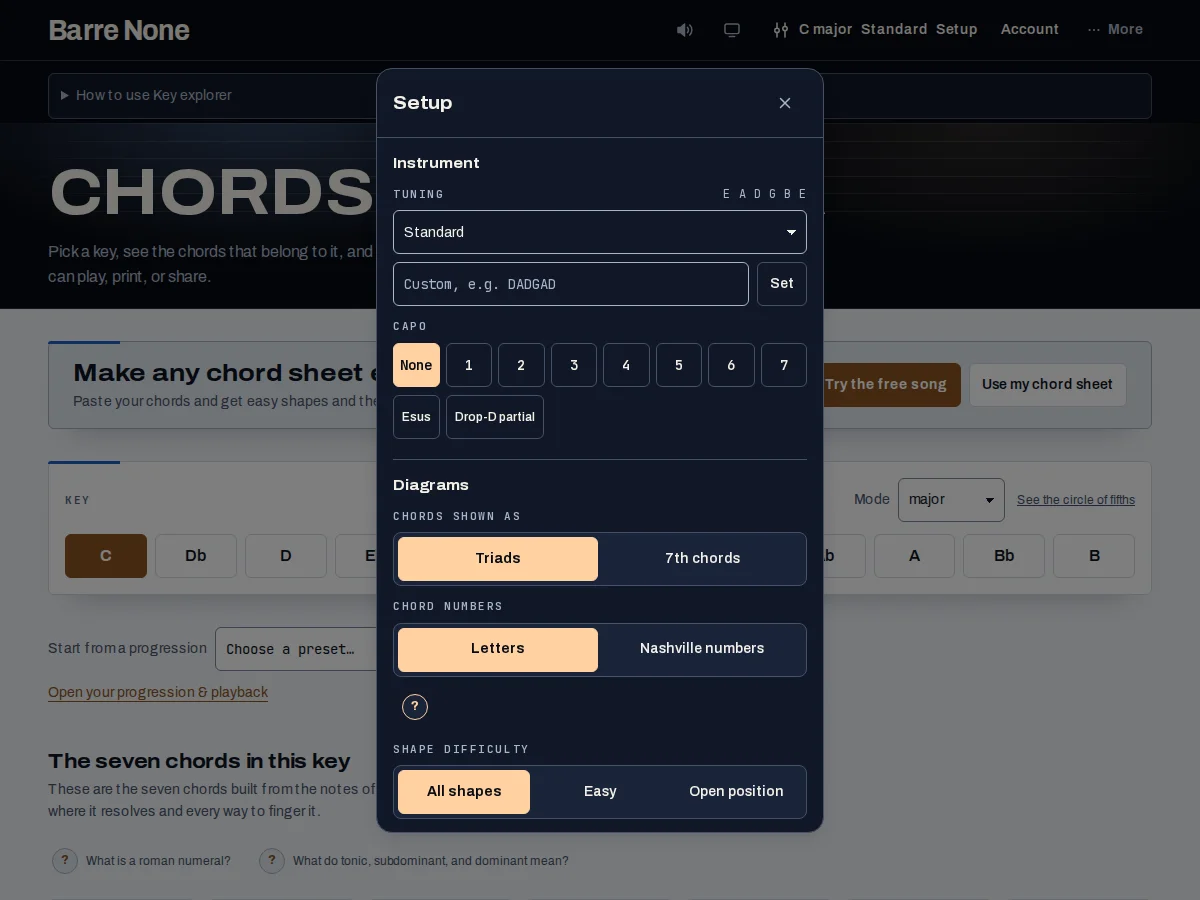
Get started
- Open the Setup button in the header; it shows your tuning and capo summary.
- Choose a built-in or custom tuning in the Instrument section.
- Choose a full capo fret or a supported partial capo preset.
- Set Chord form, Playing hand, Fret numbering, Chord numbers, and Shape difficulty as needed.
- Close Setup and verify the resulting diagrams on Key explorer, Fretboard, or Identify.
How it works
Instrument settings
Tuning changes the open pitches used by voicings, fretboard markers, audio, and Identify. Custom tunings accept pitch lists or compact note names and can be saved locally. Capo raises open-string pitches; entered fret distances remain relative to the capo, while the selected fret-numbering preference controls how positions are displayed.
- Partial capo presets are available on six-string tunings, including Esus and Drop-D partial.
- A full-barre choice clears partial coverage.
Diagram preferences
Playing hand changes the visual orientation. Fret numbering switches how positions are read, while Chord form chooses triads or sevenths where a route supports it. Shape difficulty filters returned diagrams as All shapes, Easy, or Open position; it does not promise a particular difficulty score.
- Capo Advisor and Identify intentionally omit Chord form because their calculations use fixed scoring or exact entered notes.
- CAGED labels require standard adjacent-string intervals, not merely a tuning named “standard.”
A useful setup check
After changing tuning or capo, play one diagram and compare its “play” and “sounds” names. On Identify, changing tuning resets entered frets; on Key explorer and Fretboard, the same musical state is recalculated against the new instrument.
Set up Drop D with a partial capo
- Open Setup and choose Drop D.
- Choose the Drop-D partial preset if you want fret 2 on the higher strings only.
- Leave Playing hand and Fret numbering at the values you read naturally.
- Return to Key explorer and inspect the recalculated voicings.
What to expect: The app shows shapes for the Drop-D string intervals and partial capo coverage; CAGED badges are withheld because Drop D is not standard-interval tuning.
Troubleshooting
Why did the displayed fret numbers change after setup?
The capo changes sounding pitches, while fret numbering is a separate display preference. Entered fret distances still count from the capo; switch Fret numbering if you prefer the other view.
Why did Identify reset my frets after tuning changed?
The old numeric shape cannot safely be reinterpreted in another tuning, so Identify resets each string to 0.
Why is Chord form missing?
Capo Advisor always scores sevenths and Identify derives names from entered notes or symbols. Their omission is deliberate.