Play guitar chords, progressions, and practice clicks
Use the app’s play controls to hear exact voicings, chord changes, metronome clicks, and practice tempo.
Access: Free for chord playback; some practice features require Pro
Open audio controls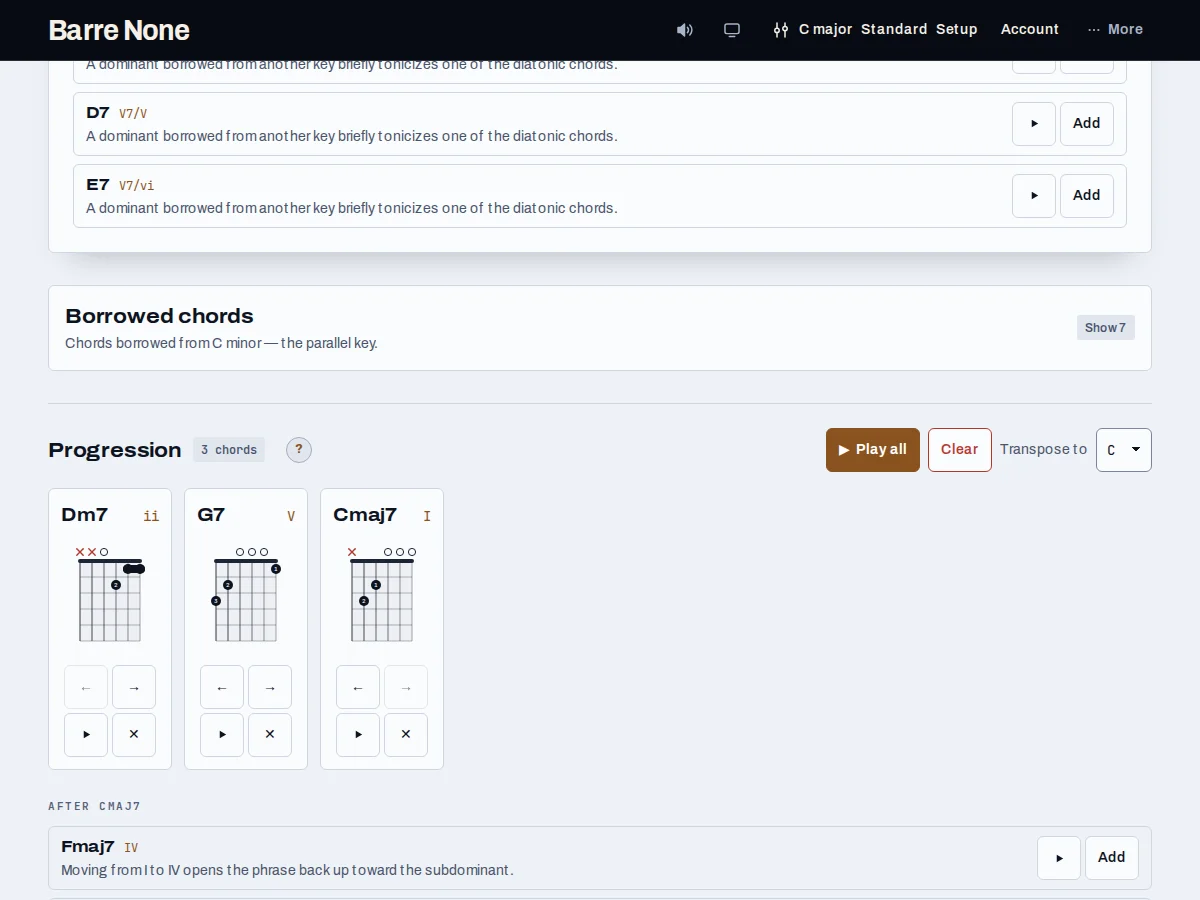
Get started
- Choose a chord in Key explorer and press the ▶ button beneath a voicing to hear that exact shape.
- Add chords to the progression strip and use its Play the progression control.
- Open Practice and set a tempo between 40 and 240 BPM; any access requirement is shown there.
- Turn on Metronome or Count-in when practicing a progression.
- Use the heading Stop playback control to silence any active audio.
How it works
What each button plays
A voicing button strums the exact displayed shape from low to high. A progression chord button plays that chord’s chosen voicing. A resolution button plays its pair at a fixed 120 BPM, while whole-progression playback uses the practice tempo, one chord per 4/4 bar by default.
- The play label names the chord or sequence so it is clear what will sound.
- The same stop path silences chords and clicks together.
Tempo and practice
Practice tempo is musical state and travels in a shared link. The Metronome option merges four clicks into each bar, accented on beat one; Count-in prepends one click-only bar. Loop repeats the count-in when enabled, making it a turnaround marker.
- Changing the strum pattern can change the bar’s beat count so clicks follow that pattern.
- The standalone Metronome route supports 2/3/4/6 time signatures and tap tempo.
Browser expectations
Audio starts from a user play action. If a browser has blocked sound, interact with the page and press Play again. Stop playback remains available beside the page heading while audio is active.
Practice Dm7–G7–Cmaj7
- Set C major, then choose sevenths under Chords shown as in Setup.
- Add Dm7, G7, and Cmaj7 to the progression strip.
- Open Practice, set 90 BPM, and enable Metronome if available to your account.
- Press Play the progression, then Stop playback to end it.
What to expect: Each chord occupies one 4/4 bar at the chosen practice tempo, with four clicks per bar when enabled. Stop silences both chord notes and clicks.
Troubleshooting
Why did a suggestion ignore my practice tempo?
Resolution and suggestion pairs intentionally use a fixed 120 BPM demonstration tempo. Whole-progression playback uses your practice tempo.
Why can’t I stop a click separately?
Clicks are merged into the same scheduled sequence as chords. One Stop control is designed to silence every output together.
Why is there no sound after opening the page?
The audio context is created lazily for a user-initiated play action. Press a visible Play control and check the browser’s tab or device volume.