Identify guitar chords, shapes, and keys
Enter frets to name a chord, list chords to estimate a key, or enter a symbol to find playable shapes.
Access: Free
Open Identify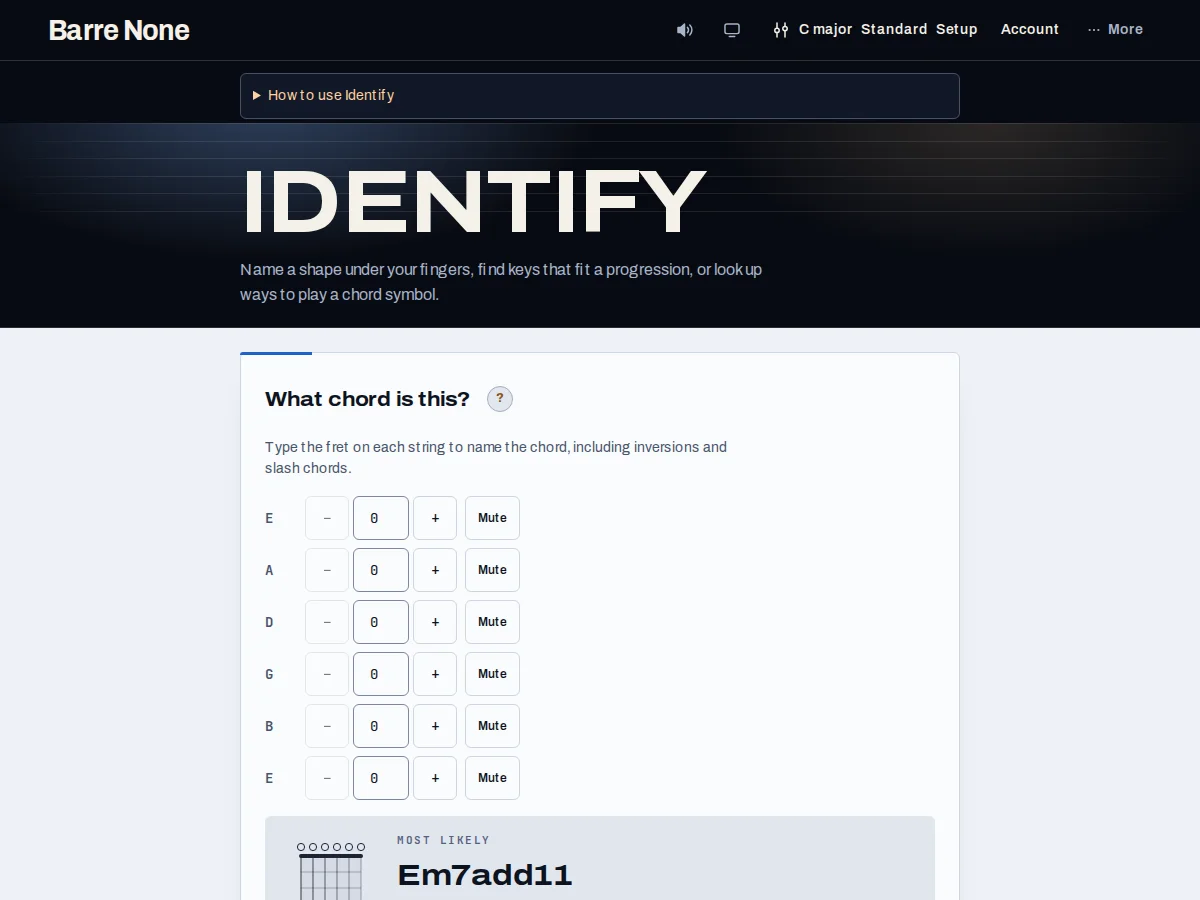
Get started
- For shape lookup, set tuning and capo in Setup, then use each string’s −/+ control or number input.
- Press Mute for strings that do not sound; the diagram and result update live.
- For key lookup, enter comma-separated chords such as Am, F, C, G.
- For symbol lookup, enter a symbol such as Cmaj7, F#m9, or C/E.
- Use the displayed notes, candidates, and voicings to check the result against your actual instrument.
How it works
Shape to name
Inputs run low string to high string. Frets are 0–24 and are relative to the capo. Identify includes inversions and slash chords by sorting actual sounding pitches for bass detection; it does not infer a chord from muted strings. All strings muted asks you to unmute one, and an unknown shape says no chord name was found.
- Changing tuning resets every fret to 0.
- The default open standard tuning is named Em7add11 because those are its actual notes.
Chords to key
Enter a comma-separated progression. Up to eight candidates are ranked by matched chords, borrowed count, tonic endpoints, and mode order. Ambiguous material stays ambiguous: Am, F, C, G fits all rotations of C major, so the tool explains rather than pretending one key is proven.
- Unrecognized entries are listed and excluded from the total.
- Extended symbols may need their basic triad or seventh form for key comparison.
Symbol to shapes
The symbol lookup accepts extended and altered chords and returns up to 12 playable voicings in the current tuning and capo. It supports requested bass for slash chords, while the Key handoff can preserve or explicitly remove that bass choice.
Name an open C shape
- In Setup, choose Standard tuning and no capo, then mute the low E string.
- Enter 3, 2, 0, 1, 0 on A through high E.
- Read the Most likely result and the notes below it.
What to expect: The shape is identified as CM, and the notes are shown in low-to-high string order.
Troubleshooting
Why did adding the capo change the chord name?
Identify applies the capo to open-string pitches before naming the shape. Frets you enter remain relative to that capo.
Why is my key list empty or unhelpful?
Check for typos and use parseable triads or sevenths. A parseable list with no exact matches explains that limitation instead of showing arbitrary zero-match keys.
Why did changing tuning erase my frets?
The same numeric pattern means different pitches in another tuning, so the route resets all shape inputs to open strings.