Complete and submit a guitar lesson assignment
Open a teacher-issued assignment, practice a pinned copy, and submit one reviewed result with fresh consent.
Access: Assignment retrieval and submission require connectivity and an authorized link. Students under 13 cannot retrieve or submit cloud assignments; pinned work and export remain local.
Open Assignments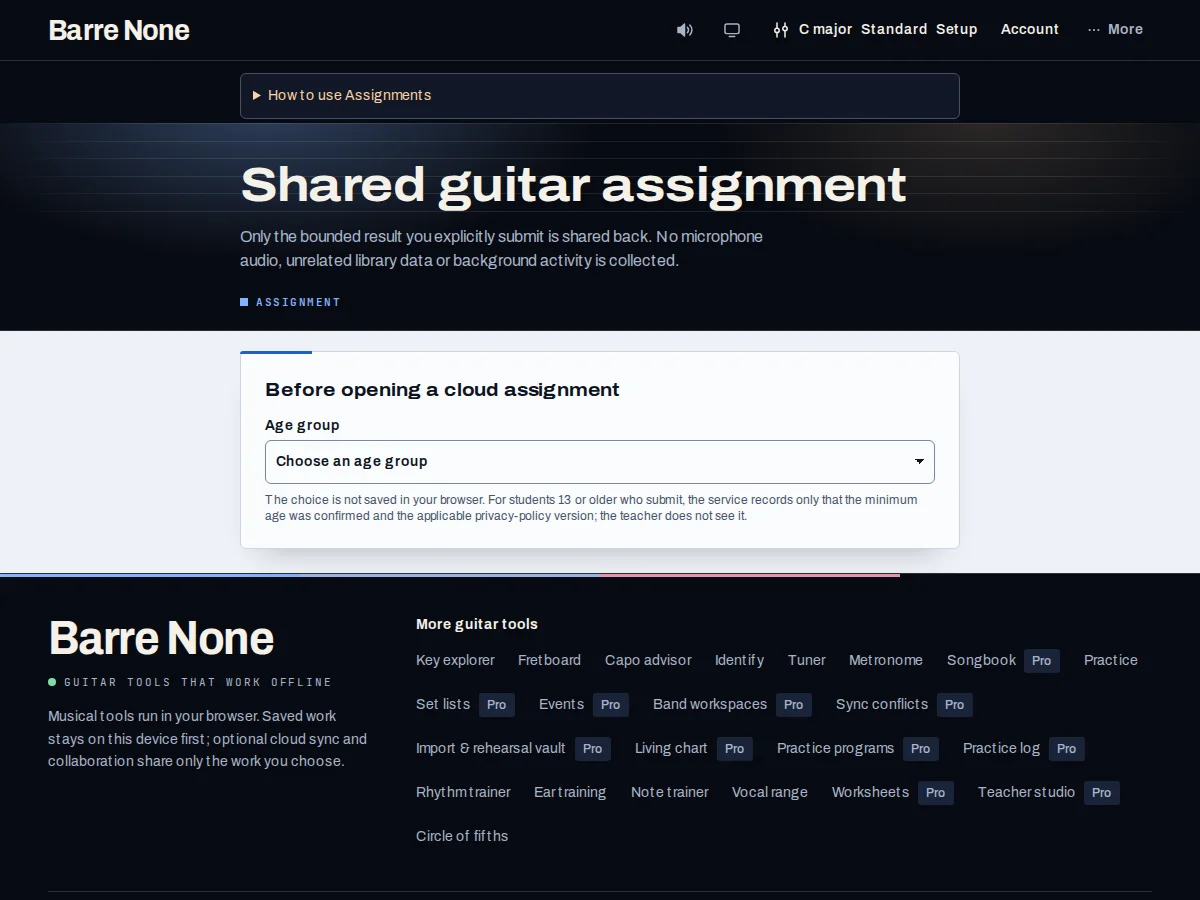
Get started
- Open the teacher-provided assignment or alias return link and answer the neutral age-group prompt.
- Review the assignment, alias, activity, and any existing work; open an activity separately to practice.
- Enter whole-number attempts, an optional score, self-rating, and note, then review the displayed time.
- Check consent only after all fields are final; press “Submit to teacher” once.
- Use “Pin offline copy” for local practice and “Export my work” for a parent, guardian, or teacher.
How it works
One explicit submission
The service accepts one submitted result per assignment. Choose the activity whose result you want to share; it is not silently attributed to the first activity. Changing any result field clears consent.
Attempts are 0–10,000, score is 0–100, self-rating is 1–5, and notes have a length limit shown by the form. Correct any marked fields before submitting. A successful receipt prevents accidental resend on reload.
Offline copy
A pinned lesson is a local snapshot, not proof that the teacher still authorizes delivery. Offline work and export remain available after a link expires or is revoked; “Check current access” rechecks after reconnecting.
Replacing another pin requires confirmation. A failed send keeps the result and requires fresh consent for an explicit retry; there is no automatic background submission.
Privacy and age
The route never asks for a birth date or exact age. It records the minimum-age basis and policy attestation with the submission, not in the teacher-visible result. Export includes the assignment and current result draft/receipt but no token, teacher private notes, unrelated history, or audio.
The local practice log is separate and cannot be ingested by Teacher Studio.
Submit a reviewed practice result
- Open the assignment and choose Practice as the activity.
- Enter 3 attempts, a self-rating of 4, and a short note.
- Check consent and choose “Submit to teacher”.
What to expect: The exact reviewed assignment and one result are sent; editing afterward clears consent and requires a deliberate retry.
Troubleshooting
The link opens but no assignment loads.
Choose “Retry assignment” after reconnecting. Do not paste a token into a musical URL; the link remains scoped to its assignment and alias.
Submit is disabled after editing.
Review the changed fields and check consent again. Consent intentionally clears on edits, reload, access refresh, or retry.
The assignment is available offline but cannot submit.
Offline pins support practice and export only. Reconnect, check current access, and submit explicitly.