Create guitar lesson assignments in Teacher Studio
Create nickname-based lesson assignments and review one result a student chooses to send.
Access: An authenticated active Pro teacher account is required to create or mutate cloud studio records. A signed-out page is setup only; the feature is limited to students age 13 or older.
Open Teacher Studio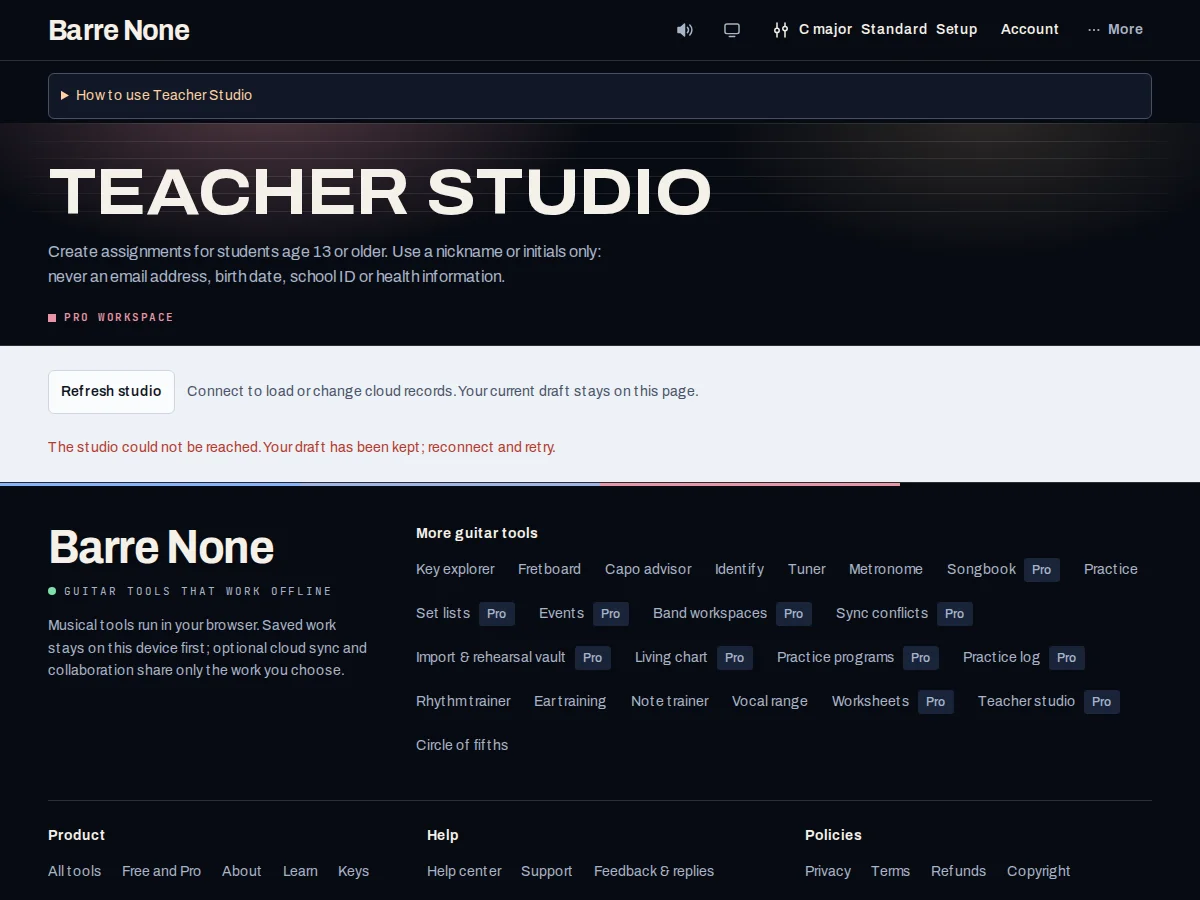
Get started
- Open Tools → Teacher studio and sign in with an active Pro account.
- Add an alias-only roster entry; use initials or a nickname and avoid sensitive personal information.
- Create a template with 1–40 nonempty activities, or use a saved template to populate the assignment form.
- Choose an alias, title, minutes, difficulty, due date, and instructions, then press “Create assignment”.
- Review returned results by alias and assignment; use “Refresh studio” after a failed read and “Download draft” before leaving an unsaved form.
How it works
What it stores
Teacher Studio uses aliases and private return links rather than student email, birth date, school ID, microphone audio, or unrelated Barre None library data. A teacher may keep up to 50 active aliases and 200 open assignments.
Templates and assignments are deliberate copies. “Copy assignment structure” does not copy submitted results, and the shipped UI has no in-place editor or alias archive workflow; create a new variation instead.
Supported activities
An activity line can open Key, Worksheet, Song, Practice, Rhythm, Ear training, Note trainer, Fretboard, Metronome, or Tuner with its musical query state intact. Other text is an instruction, not an arbitrary external link.
Opening an activity is not completion. The student explicitly reviews one reviewed result and chooses “Submit to teacher”; this route does not claim attendance, mastery, or verified grades.
Recovery and access
A failed refresh keeps the roster and form visible. Use “Download draft” before leaving if the form matters; the draft is not an offline copy of the online studio. A fresh Studio load still needs the account service.
An expired teacher can retain authorized review and export, while editing is disabled. A Free account can configure an account but cannot create online studio records.
Create a chord-practice assignment
- Make a template with “Open Key” and “Practice C → G”.
- Choose alias “MJ”, set 15 minutes and steady difficulty.
- Press “Create assignment” and copy the student link through your approved channel.
What to expect: The student receives a scoped assignment and can submit one explicit result; opening either activity alone does not mark it complete.
Troubleshooting
Create assignment is unavailable.
Verify sign-in, active Pro access, and the account service. A local draft can be downloaded, but it cannot create a cloud record offline.
A student’s result looks like a verified grade.
Scores and attempts are student-reported context. Teacher Studio displays them by alias; it does not verify mastery or duration.
A draft disappeared after leaving Studio.
Session draft recovery is scoped to the studio and browser session. Download the draft before leaving when storage fails or the form matters.