Import guitar songs and rehearsal files safely
Preview songs, sets, CSV rows, and shared files before adding them to this browser.
Access: The Import workspace requires Pro for new library imports. Local imports do not require a cloud account. Uploading private rehearsal files additionally requires an authorized account and an available cloud service.
Open Import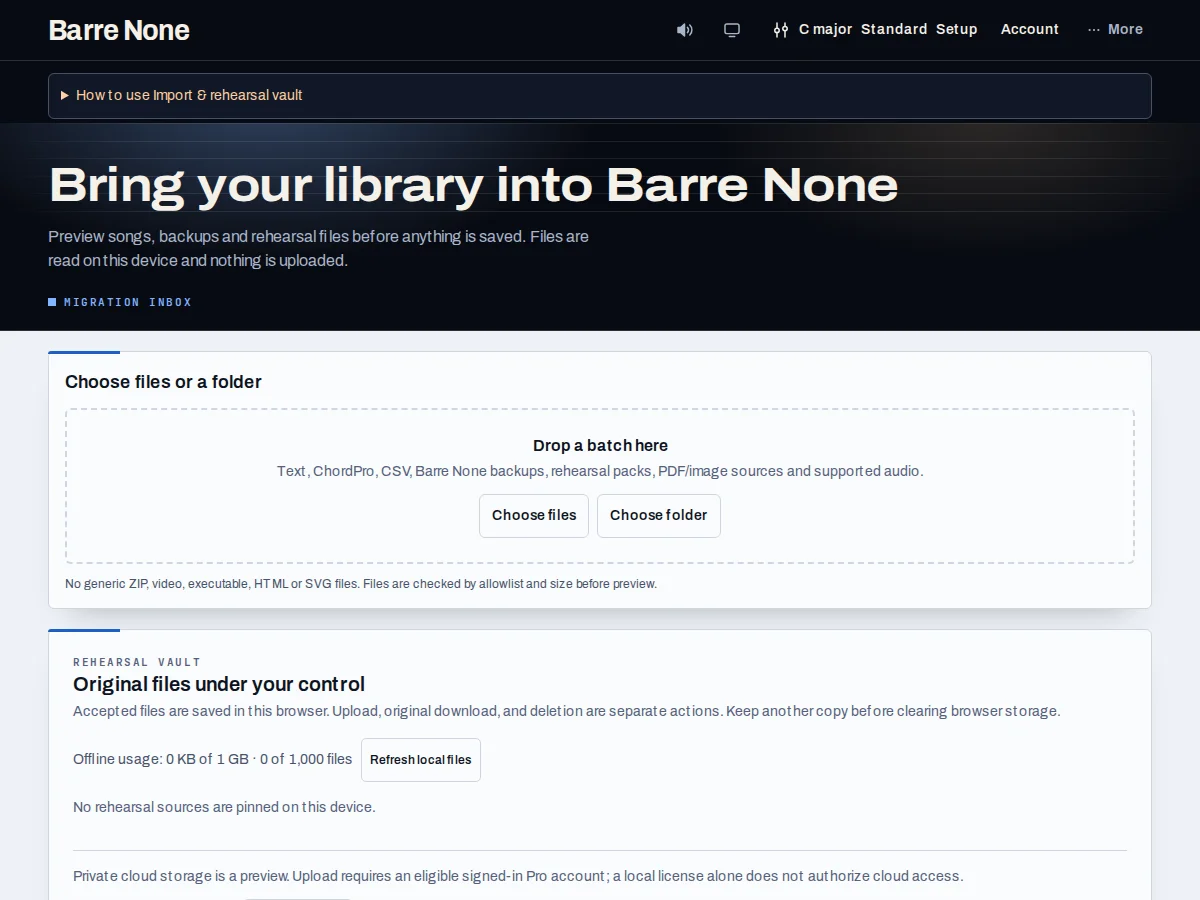
Get started
- Open Import and choose a file or installed share delivery; wait for the source to be read.
- Inspect the preview counts, skipped rows, source references, and any “needs review” entries.
- For a rehearsal pack, choose “Import copy” and confirm; for CSV, fix mapping issues before adding it.
- After the import succeeds, optionally choose “Build a set from these”, name it, and choose “Save new set”.
- Use “Refresh local files” for original files, and verify them before downloading or pinning one.
How it works
Preview before writing
PDF and image files are source references, not automatic chord transcriptions. Use ChordPro or supported text for editable chords. Import never silently merges an unknown source. A rehearsal pack creates fresh song copies and rewrites set references to those copies. It does not overwrite a previously saved local song. Canceling a preview leaves your existing songs and sets unchanged.
Songs can offer a merge of song details; file attachments use new-copy or skip choices. A missing or ambiguous source-file reference remains “needs review”, never silently discarded.
From import to a set
After the local import succeeds, “Build a set from these” opens a preview in the page. It preserves import order, reports song details that could not be imported and the 64-entry cap, and writes only after an explicit name and “Save new set”. Canceling changes neither songs nor sets.
Imported tempo is not treated as song duration. Valid keys, capo 0–12, and supported tunings are mapped; invalid values inherit instead.
Private originals
The vault keeps original files separately from your song and sync lists. “Pin offline” and “Refresh offline copy” check the file before replacing a local copy. A failed replacement keeps the previous usable record.
Cloud storage is a preview/release-gated service where indicated in the UI. Do not interpret a local placeholder or setup screen as proof that a production bucket is enabled.
Import a rehearsal pack safely
- Select the pack and inspect its exact song/set counts.
- Choose “Import copy”, then verify the committed songs in Songbook.
- Open the offered set preview and press “Save new set” only if the order is right.
What to expect: The new set references fresh imported song copies, so existing songs remain untouched.
Troubleshooting
A file is marked “needs review”.
Select the exact matching source file from the same batch, or remove the row deliberately. Ambiguous references are not auto-resolved.
The imported set is not in Setlists.
The set-builder is a preview until “Save new set” succeeds. Reopen the migration result and check for a write error.
Refreshing an offline copy removed the usable file.
A validated replacement should be atomic. Retry after checking browser quota; do not delete the previous record while a replacement is pending.