Create a timed Living Chart for guitar rehearsal
Turn portable ChordPro into a timed rehearsal chart with loops, generated chords, and authorized reference audio.
Access: The public sample player works offline without Pro. New chart authoring, local saves, media attachment, and named loops are Pro features; exports and downloads remain available after expiry.
Open Living Chart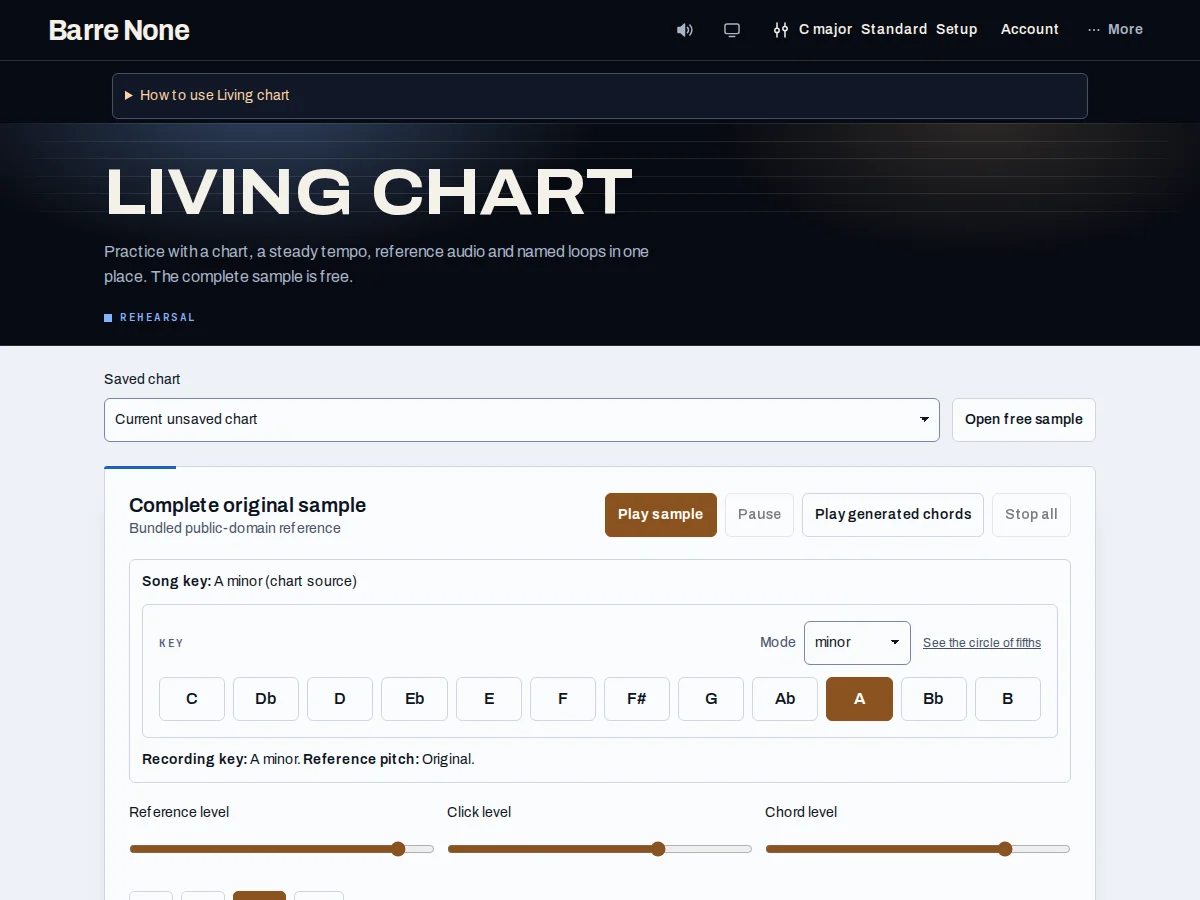
Get started
- Open the sample or select a saved chart, then review line timing and the current song key.
- Use Play sample for reference audio or Play generated chords for synthesized accompaniment; these are separate controls.
- Select a line and use “Mark start for selected line” while listening; review any source timing tasks and resolve every ambiguous line.
- Create a named loop only from ordered confirmed markers, then save the chart explicitly.
- Use “Stop all” to silence reference audio, generated chords, and count-in; export the chart before making risky edits.
How it works
Source and timing
ChordPro remains the portable source of truth. Source edits are previews: the app moves timing markers when it can identify one exact matching line, while missing or duplicate matches become repair tasks. Save is blocked until every task is resolved or explicitly discarded.
Untimed lines interpolate only between confirmed lines in chart order. A loop cannot silently reverse when a marker moves.
Audio and offline use
The Wayfaring Stranger sample has generated chords and a bundled project-generated WAV. Authorized customer recordings require a rights confirmation, an explicitly confirmed sounding key, and Pro authoring. Original media stays separate from song lists and sync; it is not put in URLs.
The route never autoplays. Reference pitch shifting supports shifts of up to three semitones in either direction; unsupported key/mode changes disable reference playback while generated chords remain usable.
Sync and publication
Saved chart source, timing, and loops can participate in opt-in account sync. When two devices edit one chart, the app preserves a labeled copy for you to compare instead of silently choosing one timeline.
Workspace publication is a separate reviewed copy. It does not change the published set until “Publish changes” succeeds, and shared media must be approved for the workspace before members download it.
Make a verse loop (Pro)
- Open a saved chart with Pro authoring and select the verse line.
- Press Play selected line, then mark the verse start and end after confirming timings.
- Create the named loop and save the chart.
What to expect: The loop repeats only the ordered confirmed range; changing the source later creates a visible review before markers move.
Troubleshooting
Reference audio is disabled after changing key.
The requested shift may exceed ±3 semitones or change major/minor mode. Use generated chords or choose a supported target key.
A source edit will not save.
Resolve every missing or duplicate stable-ID repair task, or explicitly discard the affected marker/loop, then save the confirmed preview.
The chart plays but no practice event appears.
Only a naturally completed full pass or a completed named-loop cycle records for Pro. Pause, seek, partial playback, and navigation record nothing.