Share reviewed guitar charts with a band workspace
Share reviewed songs, sets, and charts with a band while keeping the published version stable.
Access: Pro owners create workspaces and Pro editors publish changes. Invited free viewers can read, download, print, and pin published copies. Sign-in and a connection are required to retrieve or publish shared work.
Open Workspaces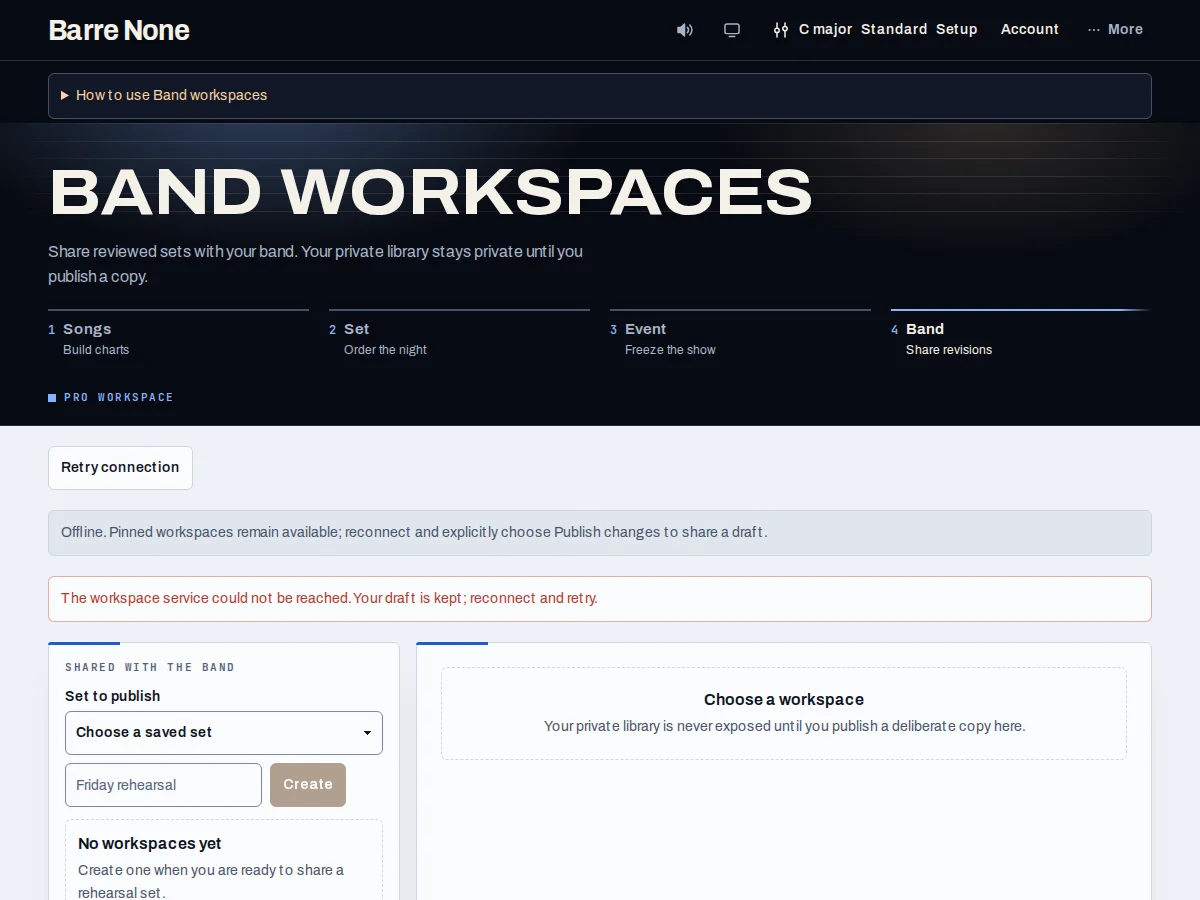
Get started
- Sign in, open Workspaces, and select an authorized workspace or redeem a single-use invite.
- Choose the role-focused published view: Musical director, Singer, Guitarist, or Read-only.
- Download the current draft before replacing it; stage reviewed song, set, or living-chart changes.
- Review the revision and choose “Publish changes” only when the copy, timeline, and media authorization are correct.
- Choose “Pin offline copy” only after “Offline app ready” appears; use “Reload latest revision” deliberately if a draft is stale.
How it works
Roles and publication
A workspace separates editable drafts from the published copy. Role-focused views change presentation, not access. A stale copy is rejected rather than silently overwriting another member’s work.
Living Chart publication requires a reviewed source, timing, loops, notes, and any workspace-visible reference recording. The personal chart remains separate until publication succeeds.
Offline and recovery
On a first visit, the installed app must finish preparing before an offline pin can be made. Download remains available while it prepares. A pin is a local snapshot, not proof that membership or cloud authorization continues.
Download includes the current draft; print and offline pin use the published document. Keep a download before “Reload latest revision”, which asks before replacing local edits.
Events and privacy
Workspace-linked events use the same authenticated service but remain separate event records. Workspace documents are not folded into the private account snapshot; workspace drafts, invitations, and pins have their own recovery path.
A member can read an authorized shared asset, but cloud media is reauthorized per download. Do not put passwords, private contact details, or unrelated library data in a workspace note.
Publish a reviewed chart
- Download the current draft as a safety copy.
- Stage a source edit and resolve every timing-marker repair task.
- Confirm the review and choose “Publish changes”.
What to expect: The workspace advances to a new published copy; the old copy remains available for comparison and recovery.
Troubleshooting
“Pin offline copy” is disabled.
Wait for “Offline app ready”, or use Download while the shell is preparing. A pin cannot be made from an uninstalled first visit.
Publishing reports a stale copy.
Review the current workspace copy, bring your changes across deliberately, and publish again. Do not repeatedly retry an old draft.
I can see setup but not the band document.
Sign in with the invited account and check your connection. If the workspace is still missing, ask its owner for a fresh invitation or confirmation that you are still a member.