Resolve guitar library sync conflicts
Compare two saved versions, keep one, keep both, or restore a deletion without breaking set references.
Access: Pro is required to compare preserved local copies. Manual library recovery download is available without Pro or sign-in. New cloud synchronization requires a connected account.
Open Conflict recovery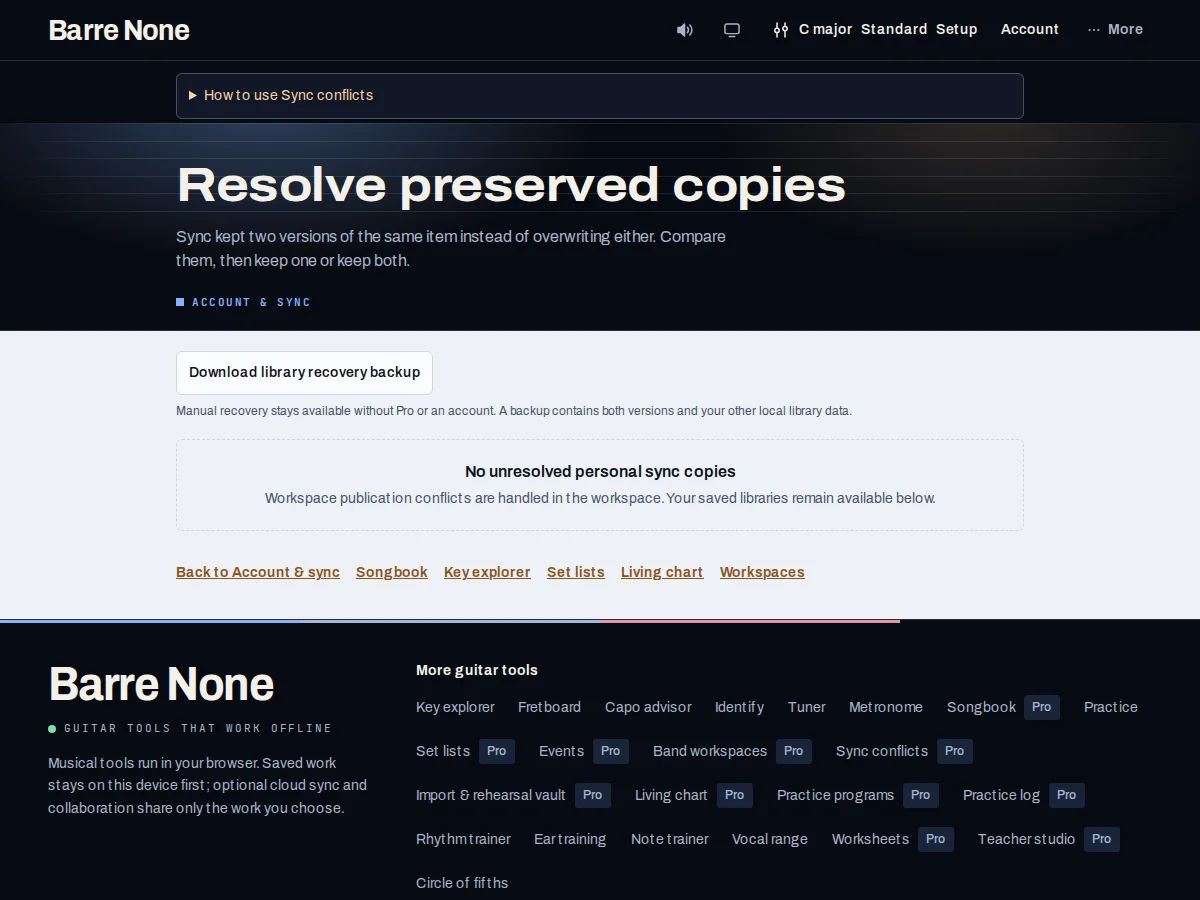
Get started
- Open Account & sync and choose the conflict/recovery link.
- Compare the readable source, set/chart values, and local change times.
- Download a full backup before resolving a record.
- Choose “Keep mine”, “Keep theirs”, or “Keep both as separate items”, then confirm the exact record.
- Sync again and verify the unresolved count and any affected set references.
How it works
Compare versions safely
Edits made on two devices produce a labeled copy instead of silently discarding one. “Keep mine” and “Keep theirs” first request a full-library backup and ask you to verify it saved before removing a version.
The chosen record keeps its existing identity, so set-list references follow it. If the original was deleted, recovery offers “Keep deletion”, restoration, or retaining the preserved copy separately.
Keep both
“Keep both as separate items” retains both records. A later edit to either side reopens comparison, and the unresolved count remains visible until each copy is handled.
Vocal-demand copies remain in Account recovery until an explicit keep choice selects the record to use. Captured detector frames and audio are never part of the conflict.
Safe boundaries
Cancel or reload leaves both copies unchanged. Each decision rechecks the records after confirmation and refuses to overwrite newer edits. Download or storage errors remain visible rather than claiming resolution.
A workspace conflict is separate from private account sync and uses its own revision recovery. Do not treat this route as a way to merge workspace membership or cloud assets.
Keep the newer chord sheet
- Download the offered full backup.
- Compare the source text and change times, then choose “Keep theirs”.
- Confirm and run Sync now.
What to expect: The version you choose becomes the saved song used by its existing set entries. The other version is removed only after you confirm the choice.
Troubleshooting
The conflict count returned after resolving it.
A later edit can reopen the comparison, and a second device may have authored the preserved copy. Refresh the page and inspect the current source labels.
I can download recovery data but cannot compare the copies.
Comparison requires Pro. Download the recovery backup to preserve both versions, then check Pro access in Account. Signing in alone does not grant Pro; local comparison does not require an active cloud connection once access is available.
A keep action says the record changed.
Another edit won the recheck. Cancel, download a fresh backup if needed, compare again, and choose against the current copies.